-
AI FactoryAI FactoryAI Factory – Ready to start your journeyEnable your organization with Private AI, by creating a (PAYG) account today.

-
NeoCloudNeoCloudAI Factory – already hereThe AI Factory is no longer a concept — it’s a reality.
-
SolutionsSolutions
-
CompanyCompany


Fine-tuning a Large Language Model: From synthetic data generation to private deployment on Nebul’s AI Factory
Most teams that want a fine-tuned model don’t start with a dataset. They start with documents: policy PDFs, product manuals, support tickets, internal wikis. The model they want is one that answers in the vocabulary of those documents, and the gap between “we have 40 pages of policy docs” and “we have a fine-tuned model serving in production” is where fine-tuning projects usually stall.
This guide walks through that whole path on Nebul AI Studio, using a running example: a support assistant trained on your company’s policy documentation. Your documents become a training dataset with Data Designer, the dataset trains a LoRA adapter, and the finished model serves on our inference API. To use it, all you have to do is switch the model. Here are the steps of the pipeline in detail.
Step 1: Uploading documents
For our support bot example, the process starts with selecting the documents that capture how our team talks to customers. We want it to write with the same tone and conciseness as our support staff, so we upload a few hundred resolved ticket transcripts and the internal reply guidelines our team works from. The policy PDFs go in as well, but not as a source of facts; they show the model how our team phrases and structures answers when the subject is a policy. If we want guaranteed up-to-date policy knowledge, we would add a retrieval layer on top of the fine-tuned model.
Data Designer accepts PDF, Word, PowerPoint, images, and plain text (the full list of supported file types and size limits is in the docs, up to 512 MB per file and 5 GB per upload). For scanned documents, OCR extracts the text from the page and is on by default in the recommended profile, so keep it on for PDFs, scans, and images.
One more thing worth knowing before you upload anything: PII redaction always runs. Names, emails, phone numbers, and similar details are redacted before generation, and you cannot turn this off. So, thinking in that perspective, ticket transcripts are a much safer starting point than they look.
Step 2: Generating the training dataset
With the uploads in place, Data Designer turns them into a training dataset. The ticket transcripts, reply guidelines, and policy PDFs are parsed and split into passages, and for each passage a generation model writes a realistic customer question paired with a grounded assistant answer, modelled on the examples we uploaded. Under the hood this runs on NVIDIA NeMo Data Designer, against Nebul-hosted models in your project. Because every pair starts from real content, the dataset covers the situations our support team handles, and it inherits the tone and answer structure we picked the documents for. No pair is invented from thin air; each one traces back to a specific passage from our own material.
You configure the run in a wizard: dataset name and how many examples to generate (1,000 by default, up to 10,000). You will also need an API key for your project, because generation and the judge both run as inference on that key. If you don’t have one yet, you can create it under API keys (see Projects). Before committing to the full run, you get a five-row preview. Use it. The full run is thousands of LLM calls, and the preview is where you catch a wrong question style or answers that summarize instead of teach, at almost no cost. Once the run starts you can watch progress live and cancel at any point.
Beyond grounding each row in your data, the output is still synthetic: LLM-generated records that need quality control before they are fit for training. For that reason Data Designer wraps generation in an entire validation layer. An LLM judge scores every instruction and response on accuracy, completeness, and fitness as training data, on a 1-to-5 scale. Pairs below the threshold (4 out of 5 by default) are dropped. Exact duplicates are removed. And you don’t have to spend a big model on scoring: the judge can run on a different, often smaller and cheaper model than the one that writes the pairs. Because the judge is itself a heuristic, every score comes with its reasoning, visible per row, so you can always inspect why something was kept or removed.
Most of this is configurable in the Advanced settings before a run: disable a check, change the threshold, or turn automatic dropping off and curate from the judge report yourself. You can also tune how documents are chunked (recursive chunking with 800 characters and 200 overlap is the default): smaller chunks give tighter questions, larger chunks keep more context.
The most useful setting for our support bot is probably custom prompts. You can override the instruction prompt (how the customer question is written), the response prompt (answer length, tone, structure) and the judge prompt (for example, “score down any answer that doesn’t name the policy”). So if you want answers as short and direct as your support staff writes them, this is where you say so.
The output is supervised fine-tuning (SFT) JSONL, already in the exact format the trainer expects. Generation works in English, Dutch, German, or Polish, independent of the language of your source documents.
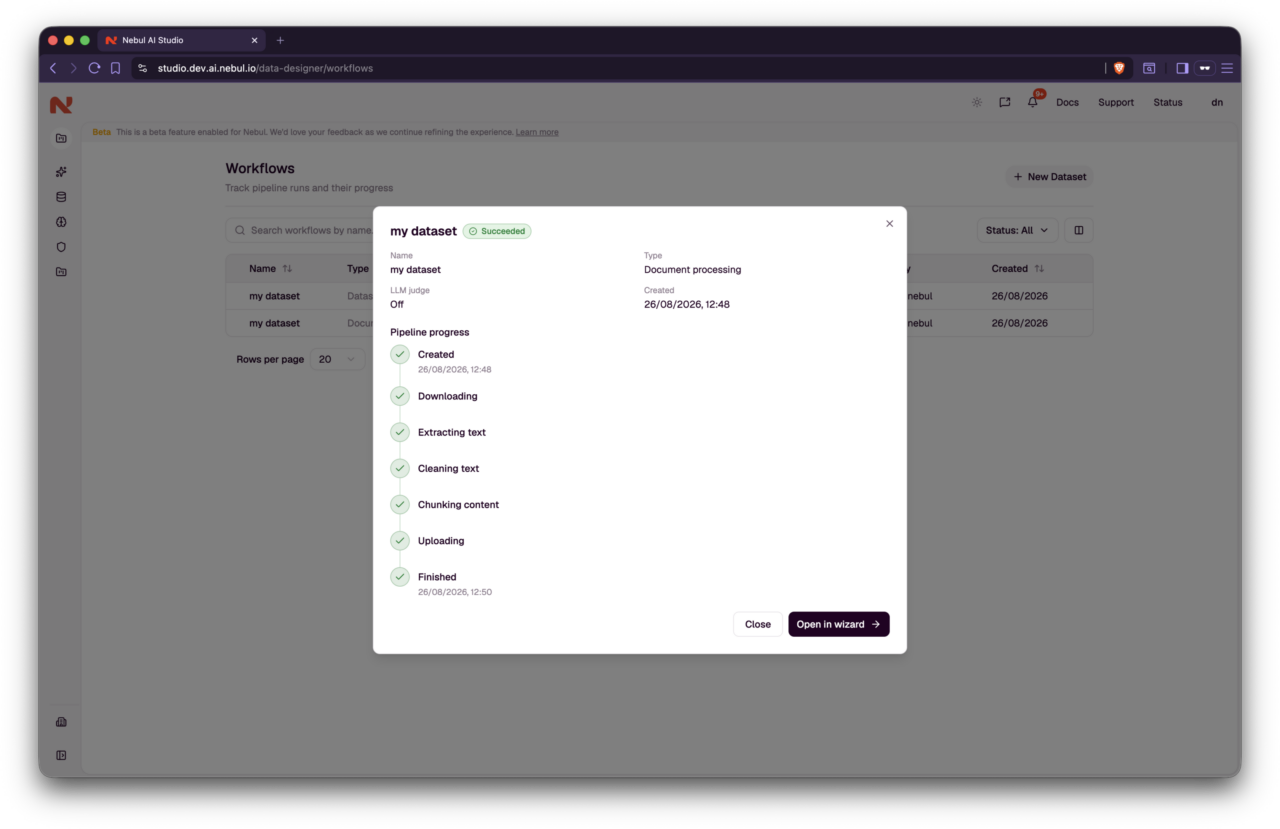
Workflow detail: pipeline steps from upload through finished.
Step 3: Fine-tune the model
With the dataset ready, fine-tuning is the part that asks the least of you. The SFT file Data Designer produced is already in the project and already in the right format, so starting a job comes down to selecting it, picking a base model, and giving the result a recognizable name like “support-bot”. For the base model, there are currently two with a maintained training recipe: NVIDIA Nemotron-3-Nano-30B-A3B and Qwen3-30B-A3B-Instruct-2507 (see supported base models). Fine-tuning covers text LLMs only, and trains LoRA adapters, not full weights. If you brought your own JSONL instead, it uploads the same way. It needs an id and a messages list per line, with alternating user and assistant turns and the last message from the assistant. Validation is all-or-nothing: a single invalid row fails the job and tells you which line. Examples are also truncated at 2048 tokens, so split longer conversations before uploading (all details in the dataset format section). There is also an optional validation dataset in the same format; without one, 10% of a 50+ row training file is held out automatically so the run still reports eval loss.
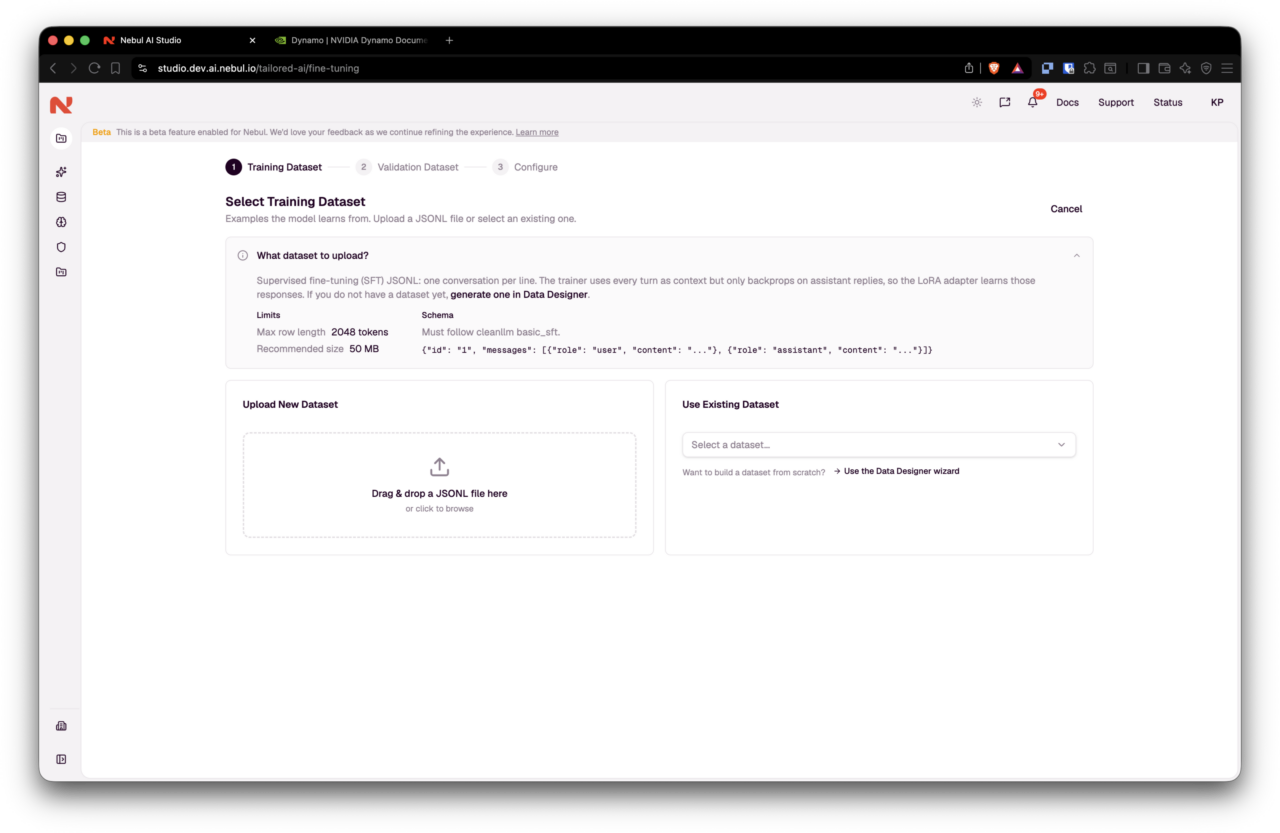
Select training dataset: upload JSONL or reuse a file, including one from Data Designer.
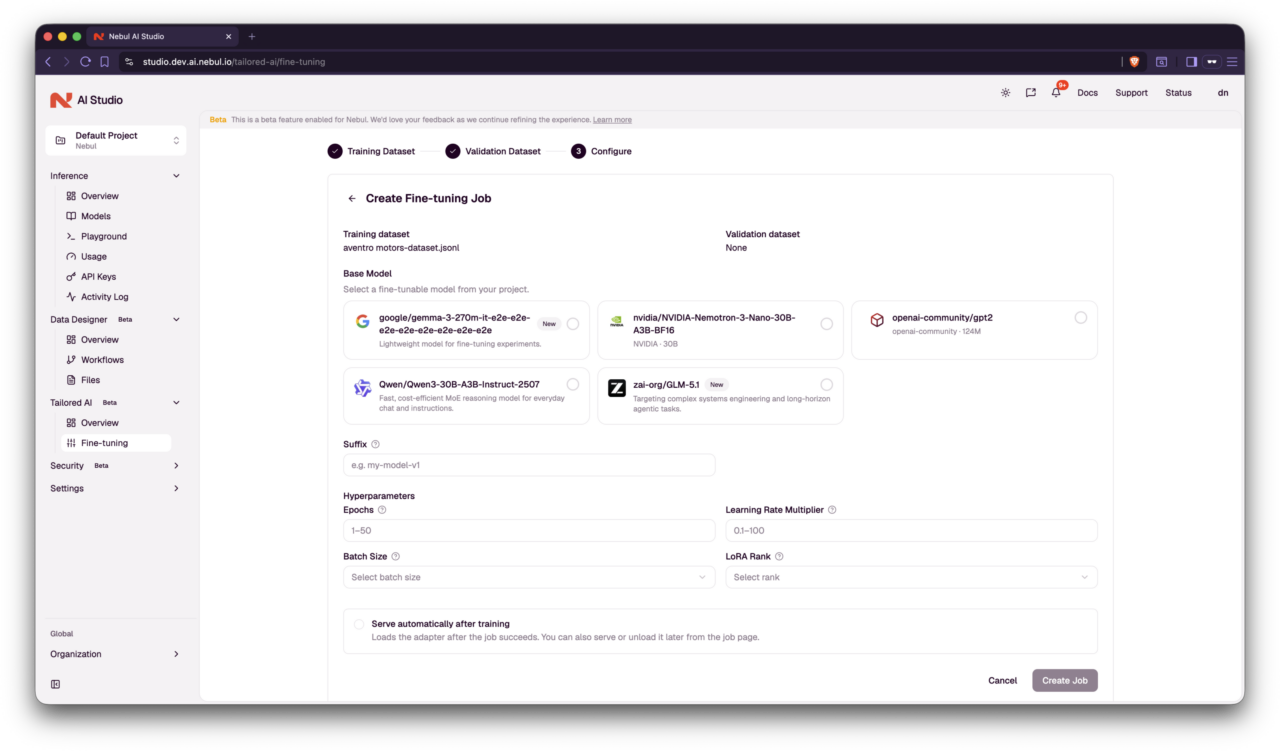
Configure: base model, suffix, hyperparameters, and optional auto-serve.
Hyperparameters arrive pre-filled from a maintained training recipe for the selected base model, and the recommended setting is to leave them alone unless you have a specific reason not to (you can always reset to defaults in the wizard). The one worth understanding is LoRA rank (8 to 128, default 16): higher rank captures more detail, but on a dataset the size of ours, more rank mostly means more overfitting. Overfitting, in short, is when the model starts matching your training examples too closely, including their noise and quirks, instead of learning the general pattern behind them, so it performs worse the moment it sees something new (see Wikipedia’s definition for the formal version). The opposite failure is underfitting, where the model never really learns the structure of the data in the first place. LoRA rank sits between the two: too low and the adapter underfits and misses your team’s tone, too high and it overfits and just memorizes the tickets it saw. The same logic applies to epochs: the default is 1, and too many passes can make the model memorize the data instead of learning from it.
Starting the job runs four phases, download, validate, train, upload, tracked live with loss charts, cancellable at any point. Ticking Serve automatically after training folds deployment into the job, so the model comes out the other end already online.
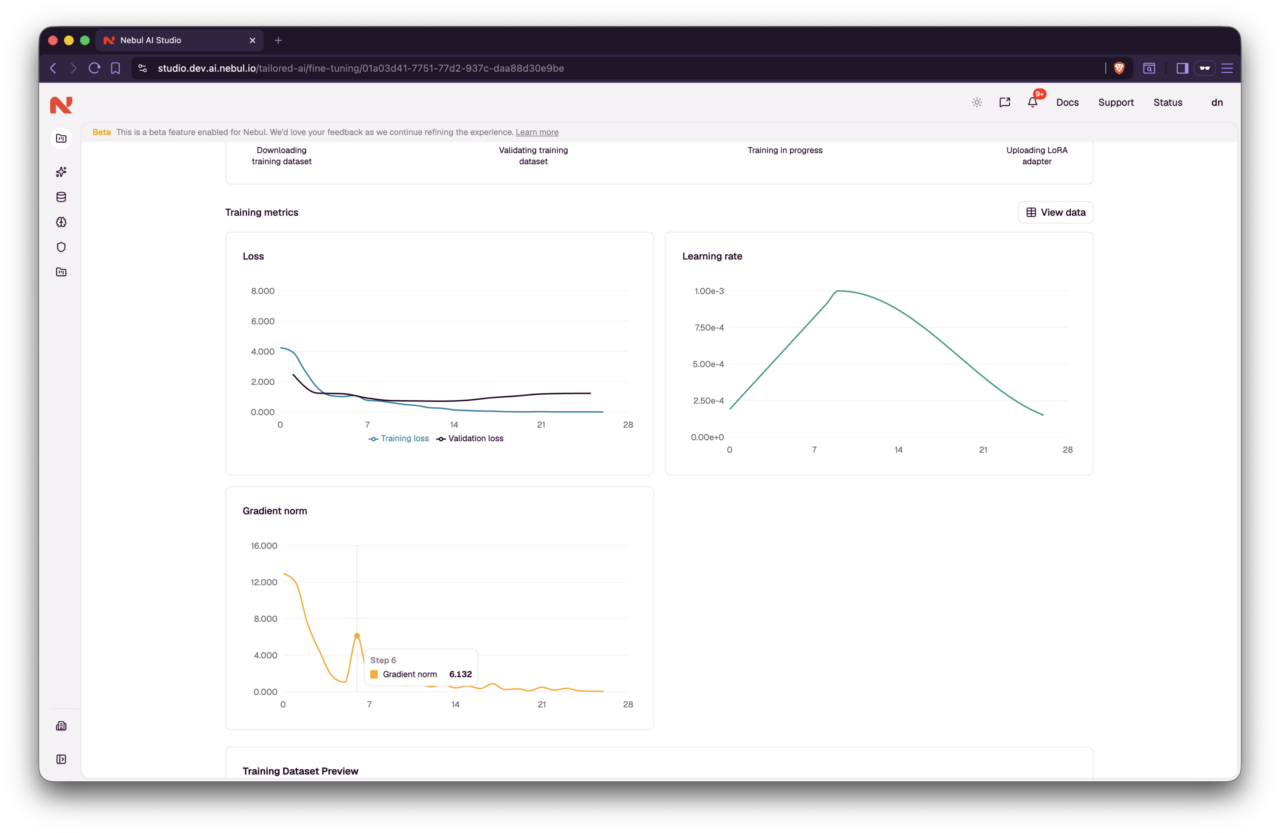
Training metrics: loss, learning rate, and gradient norm while the job runs.
Training itself is LoRA: the base model’s weights stay frozen and a small adapter learns the tone and answer structure from our tickets. That is what keeps training inexpensive, keeps the base model reusable across projects, and makes the next step fast.
Step 4: Serve and use the model
When the job succeeds, the adapter appears in Inference → Models, tagged as fine-tuned. At this point it exists but is not yet online; serving is an explicit step (unless you ticked auto-serve).
Click Serve model on the job or from the model card (more in the Serving docs). Status moves to Queued while the adapter loads, typically under a minute, then to Serving. From that moment, the support bot is a real model in your project:
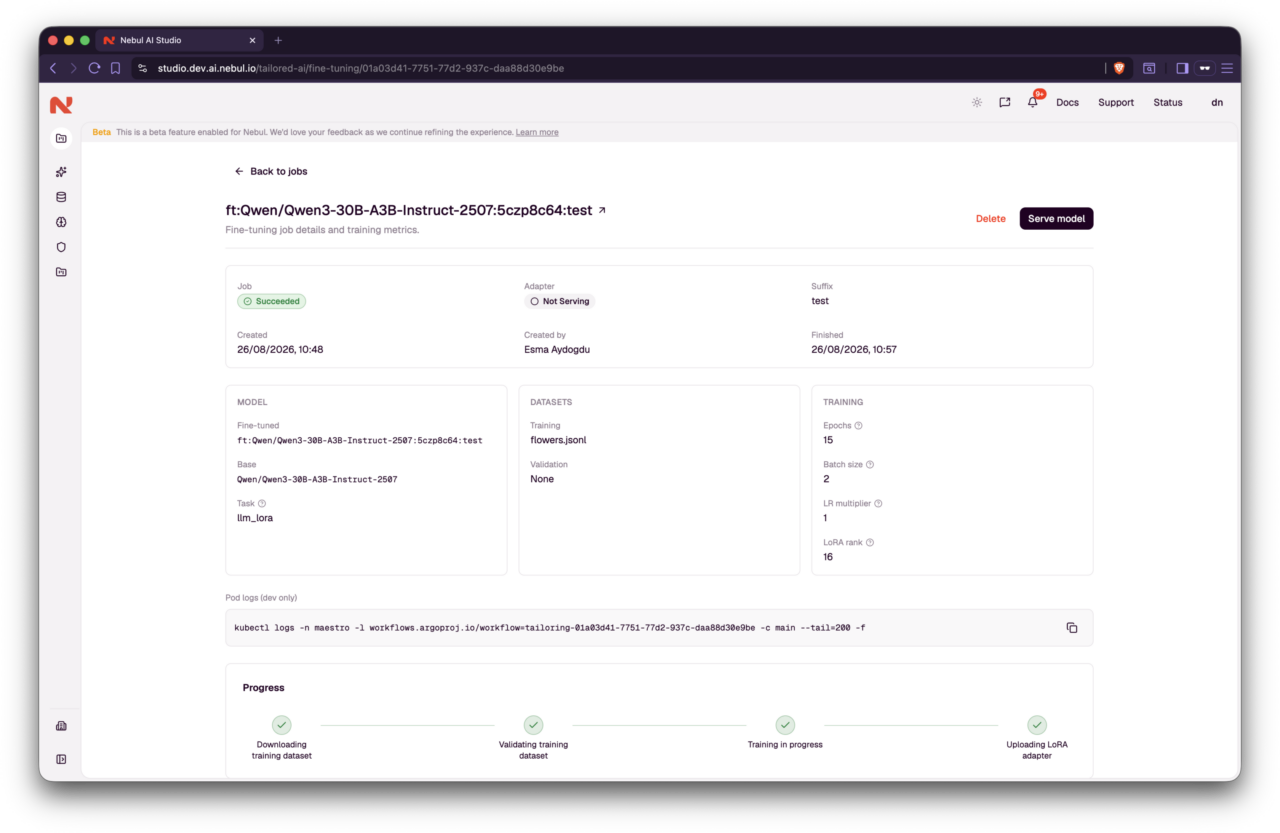
Job details: Succeeded, Adapter Not serving, and Serve model.
curl https://api.inference.nebul.io/v1/chat/completions \
  -H "Authorization: Bearer $NEBUL_API_KEY" \
  -H "Content-Type: application/json" \
  -d '{
    "model": "ft:<base-model>:<id>:support-bot",
    "messages": [{"role": "user", "content": "What is our return window?"}]
  }'
The endpoint is OpenAI-compatible (see Chat Completions), so the application that already calls a base model keeps its SDK, its tooling, and its prompt; pointing it at the fine-tuned model id is the only change, and every response now comes back in your team’s voice. Capabilities follow the base model: context length, tool support, and reasoning behavior come from it, with the adapter’s answer style on top.
Wrapping up
That is the whole path. We started with ticket transcripts and reply guidelines, and ended with a model that answers customers in our team’s voice, reachable through the same API our application was already calling. Everything in between, dataset generation, quality validation, training, deployment, ran without building or operating a data pipeline.
If you want to try it yourself, a few tips from running this workflow: start small, read the five-row preview before committing to a full run; it is the cheapest place to catch a style you don’t want. Keep the judge on for the first runs and look at its reasoning, not just the scores. And resist the urge to scale up record counts before judging quality; a focused, well-grounded dataset outperforms a large loose one.
- If you have source material but no training data yet, start with Data Designer and let it hand off to fine-tuning.
- If you already have JSONL in messages format, skip generation and go straight to the fine-tuning wizard.
Data Designer and Fine-tuning features are enabled on request. For access, contact us through the Support Portal. To read more about the features, check out the Nebul docs for Data Designer and Fine-tuning.